


In Canada, employers are legally required to complete and file T4 slips each year for employees who receive employment income, taxable benefits or other remuneration. Failing to file a T4 correctly and on time can lead to penalties, so it’s worth taking the time to understand the process.
This guide draws from the latest Canada Revenue Agency (CRA) publications and practical insights to help you produce accurate T4s and avoid common mistakes.
What is a T4 Slip?
A T4 slip is an information return that employers use to report an employee’s salary and wages paid in a calendar year. The slip shows employment income, taxable benefits, pension contributions, income tax withheld and other amounts that employees need to complete their personal tax returns. Employers must complete a separate T4 slip for each employee and file a T4 Summary that totals all amounts reported on the slips.
Who Must File a T4?
Under Canadian tax law, a T4 slip must be filed whenever an employer pays remuneration to an individual. The CRA’s employer guide specifies that you must prepare a slip if you pay salary, wages, bonuses, vacation pay, tips, gratuities, commissions, taxable allowances or benefits, retiring allowances or other remuneration. You must also file a T4 if:
- You paid pension adjustment (PA) amounts under a registered pension plan or deferred profit‑sharing plan.
- You were required to deduct Canada Pension Plan (CPP), Quebec Pension Plan (QPP), Employment Insurance (EI) or provincial parental insurance plan (PPIP) contributions.
- The total remuneration exceeds $500 or you provided taxable group term life insurance benefits (even if total pay is less than $500).
You generally report income in the year it was paid, not earned. For example, if you paid an employee in January 2024 for work performed in December 2023, that income belongs on the 2024 T4 slip.
T4 Filing Deadline and Penalties
2025 Deadlines (for 2024 T4 slips)
- T4 filing due date:28 February 2025
This is the last day to:
2026 Deadlines (for 2025 T4 slips)
- T4 filing due date: 28 February 2026
Employers must distribute T4s to employees and file T4 returns with the CRA by this date for the 2025 calendar year. - Again, if Feb 28, 2026, falls on a Saturday or Sunday, the deadline moves to the next business day.
Penalties for Missing These Deadlines
If you do not file and distribute T4 slips on time:
- CRA penalties can start at $100 minimum.
- Penalty amounts increase depending on how many slips are filed late and how many days past the deadline.
Understanding the T4 Slip: Key Boxes and Codes
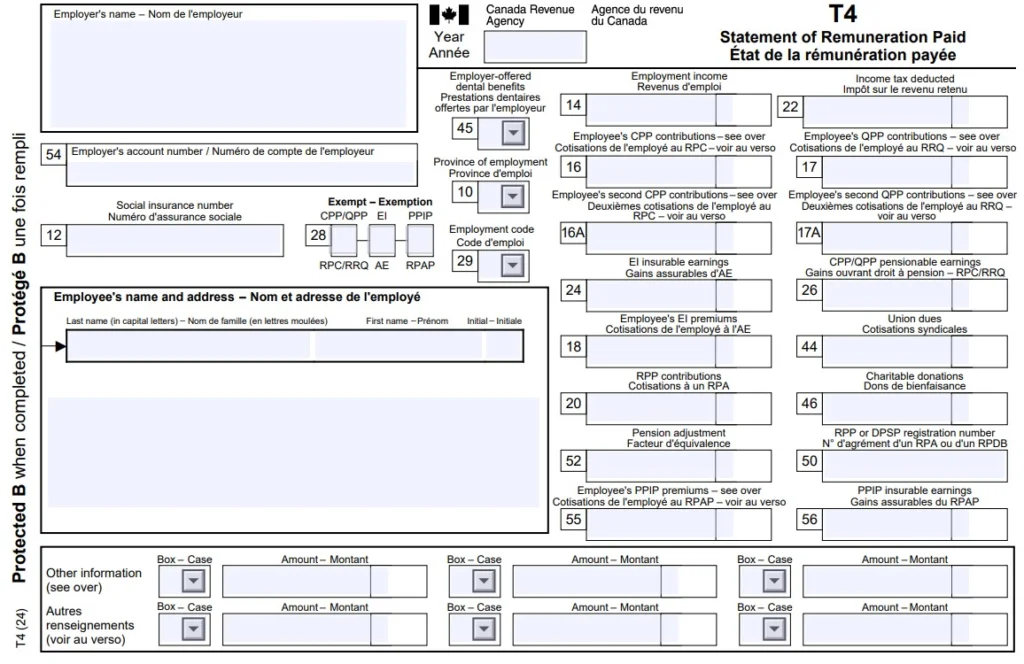
The CRA’s RC4120 guide breaks the T4 slip into numbered boxes. Each box has a specific purpose. Understanding these boxes ensures you enter accurate data and helps you interpret slips you receive as an employee or payroll professional.
Identification area
The top part of the T4 requires identification for the employer and employee:
- Employer information – Enter your legal name, operating/trade name, address and 15‑character payroll account number (for example, 123456789RP0001). Any changes to your business entity (such as incorporation or restructuring) mean you may need a new payroll account
- Employee name and address – Write the employee’s last name, first name and initials in uppercase letters without titles such as “Mr.” or “Mrs.” and provide their home address
- Year – Use four digits to indicate the calendar year in which you paid the remuneration
- Province of employment (Box 10) – Enter the two‑letter abbreviation for the province or territory where the employee worked. If the employee worked in more than one province or territory during the year, prepare separate T4 slips for each. Recognized abbreviations include AB (Alberta), BC (British Columbia), MB (Manitoba) and others, plus US for the United States and ZZ for employment outside Canada or the United States.
- Social insurance number (Box 12) – Record the employee’s SIN exactly as provided. If the employee has not supplied a SIN, you must still file the T4, using zeros in this box, and show that you made a reasonable effort to obtain it.
Compensation amounts
The middle section of the slip reports remuneration and deductions:
- Employment income (Box 14) – Report total employment income before deductions, including salary, wages, bonuses, vacation pay, tips, honorariums and director’s fees. Also include taxable allowances, benefits and payments from wage‑loss replacement plans (WLRPs) or supplementary unemployment benefit plans (SUBPs).
- CPP and QPP contributions (Boxes 16/17) – Report the employee’s CPP contributions (Box 16 for employment outside Quebec and Box 17 for Quebec). Beginning January 1 2024, the federal government introduced second additional CPP/QPP contributions (CPP2/QPP2) for higher‑income earners. Employers must report the CPP2 amount in Box 16A (non‑Quebec employees) or Box 17A (Quebec employees). These new boxes apply when an employee’s pensionable earnings exceed the annual maximum CPP earnings. Keep in mind that the second earnings ceiling (for CPP2) increases yearly, check CRA’s CPP enhancement page for current limits.
- Employee’s EI premiums (Box 18) – Enter the EI premiums you deducted from the employee’s earnings. If you report an amount here, you must also report insurable earnings in Box 24. Do not include the employer’s share of EI premiums on the employee’s slip.
- Registered pension plan contributions (Box 20) – Record amounts the employee contributed to a registered pension plan (RPP), including instalment interest and allowable retirement compensation arrangement contributions. Do not include amounts transferred directly from an RRSP or contributions you made to an employee’s RRSP.
- Income tax deducted (Box 22) – Report the total federal, provincial (except Quebec) and territorial income tax you withheld.
- EI insurable earnings (Box 24) and CPP/QPP pensionable earnings (Box 26) – These boxes report the earnings used to calculate EI and CPP contributions. You must not leave these blank. Pensionable earnings for CPP, including the CPP2 threshold, go in Box 26. When an employee works in more than one province, allocate earnings by province; the CRA provides an example showing separate Ontario and Quebec slips.
Other boxes
The T4 contains many other boxes for specialized situations. Box 28 is used to indicate exemptions from CPP/QPP, EI or PPIP programs, Box 29 identifies special employment codes, and Box 45 reports employer‑offered dental benefits. Codes 94 and 95 were added for 2024 to report RPP contributions and union dues relating to tax‑exempt employment income under the Indian Act.
Step‑by‑Step Guide to Preparing a T4 Slip
The following process improves on the typical 12‑step approach and incorporates recent legislative changes. Treat each step like a checkpoint; careful record‑keeping at each stage will make the final filing smoother.
1. Gather employer details
Start by verifying your business number and payroll account. Confirm your legal name, any trade name and complete mailing address. If your business has changed structure, such as incorporating or merging, you may require a new payroll account. Having accurate employer details ensures the CRA can match your T4 slips with remittances and contact information.
2. Collect and verify employee information
Obtain each employee’s full legal name, mailing address and SIN. The name should be entered in capital letters without titles, and the address must include province or territory, postal code and country. Employees are required to provide their SIN within three days of starting work; failure to make reasonable efforts to obtain it can lead to a $100 penalty.
3. Determine the province of employment (Box 10)
The province or territory of employment is not always where your office is located. Use the province where the employee reports to work or, if they work remotely, where their salary is paid. For employees who worked in more than one province, prepare separate T4 slips for each location and record the appropriate two‑letter abbreviation. Remember that ZZ should be used if the employee worked outside Canada or the United States.
4. Record the year
Enter the four‑digit year for which the remuneration was paid. For example, wages paid in January 2025 for work done in December 2024 are reported on the 2025 T4, because the payment occurred in 2025.
5. Calculate employment income (Box 14)
Add up all remuneration paid during the calendar year. Employment income includes salary, wages, bonuses, vacation pay, tips and gratuities, honorariums, director’s fees, taxable benefits and allowances. Include payments from wage‑loss replacement plans and supplementary unemployment benefit plans if you deducted CPP or EI premiums. Do not report amounts transferred directly from an RRSP or non‑taxable employment income for registered First Nations individuals (use separate codes instead).
6. Apply CPP, QPP and CPP2 contributions (Boxes 16, 16A, 17, 17A)
Calculate each employee’s CPP or QPP contributions up to the annual maximum pensionable earnings. If the employee’s employment is outside Quebec, report their CPP contributions in Box 16; for Quebec employment, use Box 17. Beginning in 2024, the CPP enhancement introduced additional contributions (CPP2) on earnings above the regular maximum. Report CPP2 contributions in Box 16A (non‑Quebec) or Box 17A (Quebec). Check the CRA’s published limits for the year.
7. Enter EI premiums (Box 18) and insurable earnings (Box 24)
Deduct EI premiums at the prescribed rate (check the CRA’s EI premium table for the applicable year) and record the total in Box 18. Then report the insurable earnings you used to calculate those premiums in Box 24. For 2024, the maximum insurable earnings amount is $63,200. If there are no insurable earnings and you did not deduct EI, enter 0.
8. Record RPP contributions and other deductions (Boxes 20 and others)
If your organization has a registered pension plan, report the employee’s total RPP contributions in Box 20. Include instalment interest and deductible retirement compensation arrangement contributions, but exclude RRSP transfers or employer RRSP contributions. Report union dues (Box 44), employer‑offered dental benefits (Box 45) and other deductions or benefits as required by the CRA’s box list.
9. Report income tax withheld (Box 22)
Calculate federal and provincial/territorial tax deductions based on the employee’s TD1 forms and enter the total in Box 22. Do not include amounts withheld for garnishments or previous tax arrears, those are not considered tax deducted for T4 purposes.
10. Enter CPP pensionable earnings (Box 26) and second CPP earnings
Record the total pensionable earnings used to calculate the CPP contributions in Box 26. Boxes 14 and 26 are often identical, but they may differ if an employee reaches the maximum early in the year. When employees work in different provinces, follow the CRA’s example and allocate pensionable earnings accordingly.
11. Complete the T4 Summary
After preparing slips for all employees, complete the T4 Summary. The summary totals the amounts from each slip, including total employment income, CPP contributions, CPP2 contributions (Box 16A/17A totals), EI premiums, income tax withheld and the number of T4 slips filed. Write your payroll account number and the year on the summary form. Check that the totals reconcile with remittances sent throughout the year, any difference will appear as an overpayment (line 84) or balance due (line 86).
12. File your return and distribute T4 slips
Once the slips and summary are accurate, file them electronically or on paper. Electronic filing options include Web Forms and Internet file transfer. Paper filing is permitted for up to five slips. When distributing slips:
- Email – You can email T4 slips only with the employee’s written consent.
- Employer portal – A secure portal with printable access is acceptable; employees can request paper copies.
- Paper copies – Provide two paper copies to each employee either in person or by mail.
Employers must give T4 slips to employees by the last day of February following the calendar year. Keep undeliverable slips with a record of actions taken to update addresses.
How to Fix a T4 Slip (Amend, Add or Cancel)
Mistakes happen, employees are overpaid, records change or numbers are keyed incorrectly. The CRA provides a structured process to amend or cancel T4 slips.
Situations requiring an amendment
You must amend a T4 slip if you discover an error in employment income, CPP/QPP contributions, CPP2 contributions, EI premiums, RPP contributions or income tax deducted. Do not amend a slip simply to change the employee’s address or in response to a Pensionable and Insurable Earnings Review (PIER) notice.
Methods to amend
- Online (Web Forms or Internet File Transfer) – With a web access code, you can select the amended option and re‑enter all data, correcting only the fields that need changes. Provide an explanation for each amended slip, including the recipient’s name and reason. When using Internet file transfer, include only the amended slips and use report type code A on the T4 summary.
- My Business Account (MyBA) or Represent a Client (RAC) – If you have CRA online access, you can amend slips without a web access code.
- Paper amendments – Write “AMENDED” at the top of each corrected slip and complete all boxes, including information that was correct on the original slip. Send two copies to the employee and one to your National Verification and Collections Centre with a letter explaining the reason for the amendment. You do not need to file an amended T4 Summary.
Adding, replacing or cancelling slips
If you forgot to report an employee, you can add a slip using the same electronic or paper methods as above. Replacement applies when the CRA requests you to re‑file a slip that was damaged or unreadable. To cancel a T4 slip filed in error (for example, you issued a slip to a sole proprietor instead of a T4A), file a slip showing zeros in all amount boxes and identify it as a cancellation. The CRA may contact you after filing if there are discrepancies.
Penalties and Best Practices
Failing to file T4 slips on time leads to substantial penalties. The CRA penalizes employers for each late slip, increasing with the number of slips. Additional penalties apply if you fail to provide employees with their slips by the end of February or neglect to make reasonable efforts to obtain an employee’s SIN.
To avoid penalties:
- Start early. Gather employee information and verify SINs well before year‑end.
- Use payroll software. Automated calculations reduce human error and apply current CPP, CPP2, EI and tax rates.
- Reconcile regularly. Match payroll remittances to your ledger each quarter so you can spot discrepancies before the February deadline.
- Stay informed. Each year brings changes. Keep up‑to‑date on limits for CPP and EI to ensure correct calculations.
- Document corrections. Keep a log of amendments, reasons and dates. This documentation is useful if the CRA audits your payroll records.
Conclusion
Preparing T4 slips is more than a compliance exercise; it’s an opportunity to review your payroll processes, ensure accurate record‑keeping and build trust with employees by providing clear and timely information. Understanding the boxes, deadlines and correction procedures outlined in this guide will help you avoid costly penalties and administrative headaches.
If you’re feeling overwhelmed by the process or have unique situations (such as cross‑border employees or complex benefit plans), consider seeking professional assistance. Contact our tax team today to ensure your T4 reporting is handled correctly and on time.
Quick FAQs About T4 Slips
What is a T4 slip and why do I need to file one?
A T4 slip reports employment income and deductions paid to an employee during the calendar year. Employers must file T4 slips so employees can report income and claim deductions on their personal tax returns and so the CRA can verify payroll remittances.
Do I need to file a T4 for an employee who earned less than $500?
Generally no, unless you deducted CPP/QPP, EI or income tax, paid pension adjustments or provided taxable group term life insurance benefits. In those situations you must still file a T4 even if total pay is under $500.
Can I email T4 slips to employees?
Yes, but only if you obtain written consent. Otherwise you must provide paper copies or use a secure employer portal with printable access.
What should I do if an employee leaves before year‑end?
The filing due date remains the last day of February. You still report all remuneration paid during the calendar year and deliver the T4 slip by that date. If you issue a Record of Employment (ROE) on termination, that does not affect T4 filing.
How do I fix a T4 slip after filing?
Use the CRA’s amendment procedures, either online through Web Forms, Internet file transfer or MyBA/RAC, or on paper by marking the slip “AMENDED” and sending corrected copies. Provide explanations for any corrections. Do not amend a slip solely to update the employee’s address or respond to a PIER report.
Disclaimer: The information provided in this blog is for general informational purposes only. For professional assistance and advice, please contact experts.